The TensionLab interface
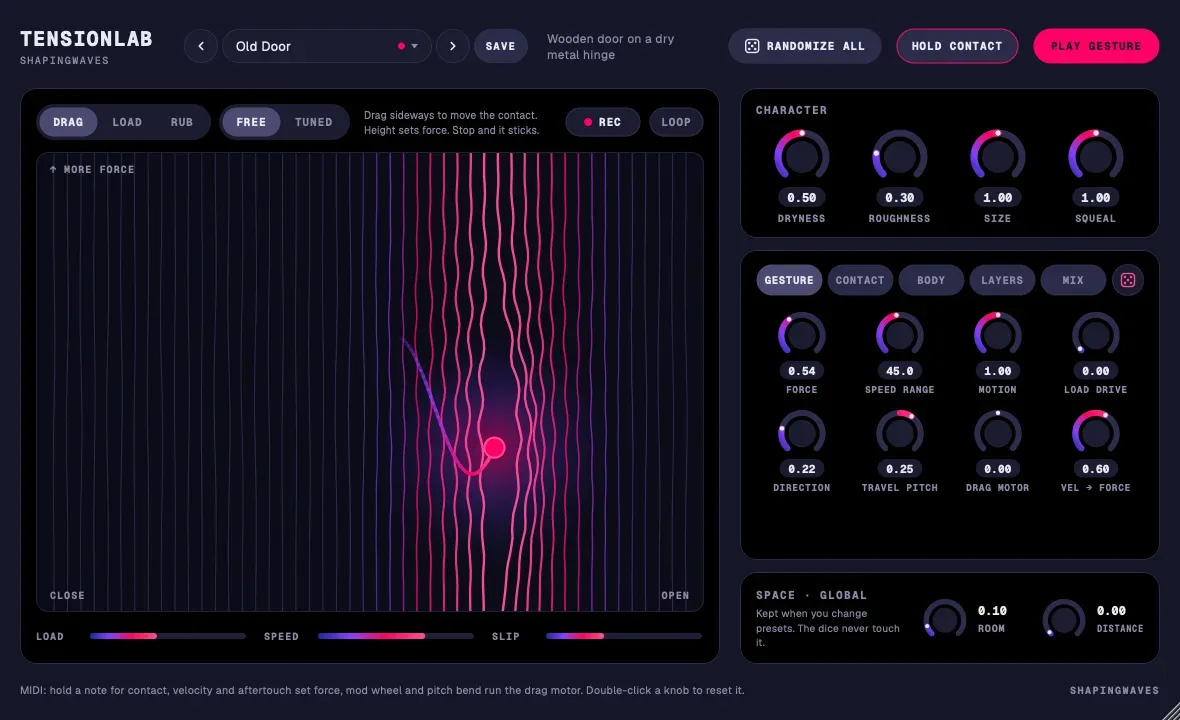
TensionLab has one window. Across the top is the header. Below it, the pad fills the left half. On the right are three cards stacked on top of each other: Character, the tab card, and Space · Global. A line of tips runs along the bottom.
You can make the window bigger or smaller by dragging its bottom-right corner. Everything scales together, from two thirds of the normal size up to double.
The header
Section titled “The header”From left to right:
- TENSIONLAB and the SHAPINGWAVES name.
- The preset bar: the arrows step to the previous or next preset, the name opens the preset list, and SAVE saves your settings as a new preset. See Presets.
- The description of the current preset, for example “Wooden door on a dry metal hinge”.
- RANDOMIZE ALL: rolls new settings for every sound control.
- HOLD CONTACT: keeps the contact pressed, as if you held a MIDI note.
- PLAY GESTURE: plays the movement that comes with the preset. While it plays, the button reads PLAYING….
The pad card (left)
Section titled “The pad card (left)”This is where you play TensionLab.
- The toolbar along the top of the card:
- DRAG / LOAD / RUB choose how the pad is played. A one-line hint next to the buttons tells you what to do in the chosen mode.
- FREE / TUNED: FREE is always on in this version. TUNED is greyed out; it is planned for a later version.
- REC and LOOP record a gesture on the pad and play it back over and over.
- The pad: a field of strings that bend and glow around the point where you touch. Left and right is the contact position. Up is more force (in Load mode: more weight; in Rub mode: more pressure). In Drag mode, the bottom corners are labelled CLOSE (left) and OPEN (right). In Load mode the strings turn into beams, and the hint at the bottom reminds you to slide to shift the weight along the beam.
- The meters under the pad:
- LOAD: how much weight or force is on the contact.
- SPEED: how fast the contact moves, in either direction.
- SLIP: how much the surfaces are slipping. This is where the creak is.
How to play each mode is explained in Controls.
Character (top right)
Section titled “Character (top right)”Four large knobs that are always visible: Dryness, Roughness, Size and Squeal. They change the overall feel of the material quickly, whichever tab is open below.
The tab card (middle right)
Section titled “The tab card (middle right)”Five tabs: GESTURE, CONTACT, BODY, LAYERS and MIX. Click a tab to see its knobs. The Body tab also has the menu where you pick what the contact is fixed to (a wooden door, an iron gate, a wine glass and so on).
The round die at the right end of the tab bar rolls new settings for the tab you can see, and leaves everything else alone.
Space · Global (bottom right)
Section titled “Space · Global (bottom right)”Room and Distance. As the card says, they are global: they stay as they are when you change presets, and the dice never touch them. That way you can set the space once for a whole scene and audition presets inside it.
The footer
Section titled “The footer”A short reminder of how MIDI plays TensionLab, and that double-clicking a knob resets it.
Working with knobs
Section titled “Working with knobs”- Drag up or right to turn a knob up, down or left to turn it down.
- Double-click a knob to set it back to its default.
- Hover over a knob to see its full name. A few knobs show a shorter name in the window, for example MOTION for Motion from position.
- The value is shown in a small pill under each knob.